Playlists
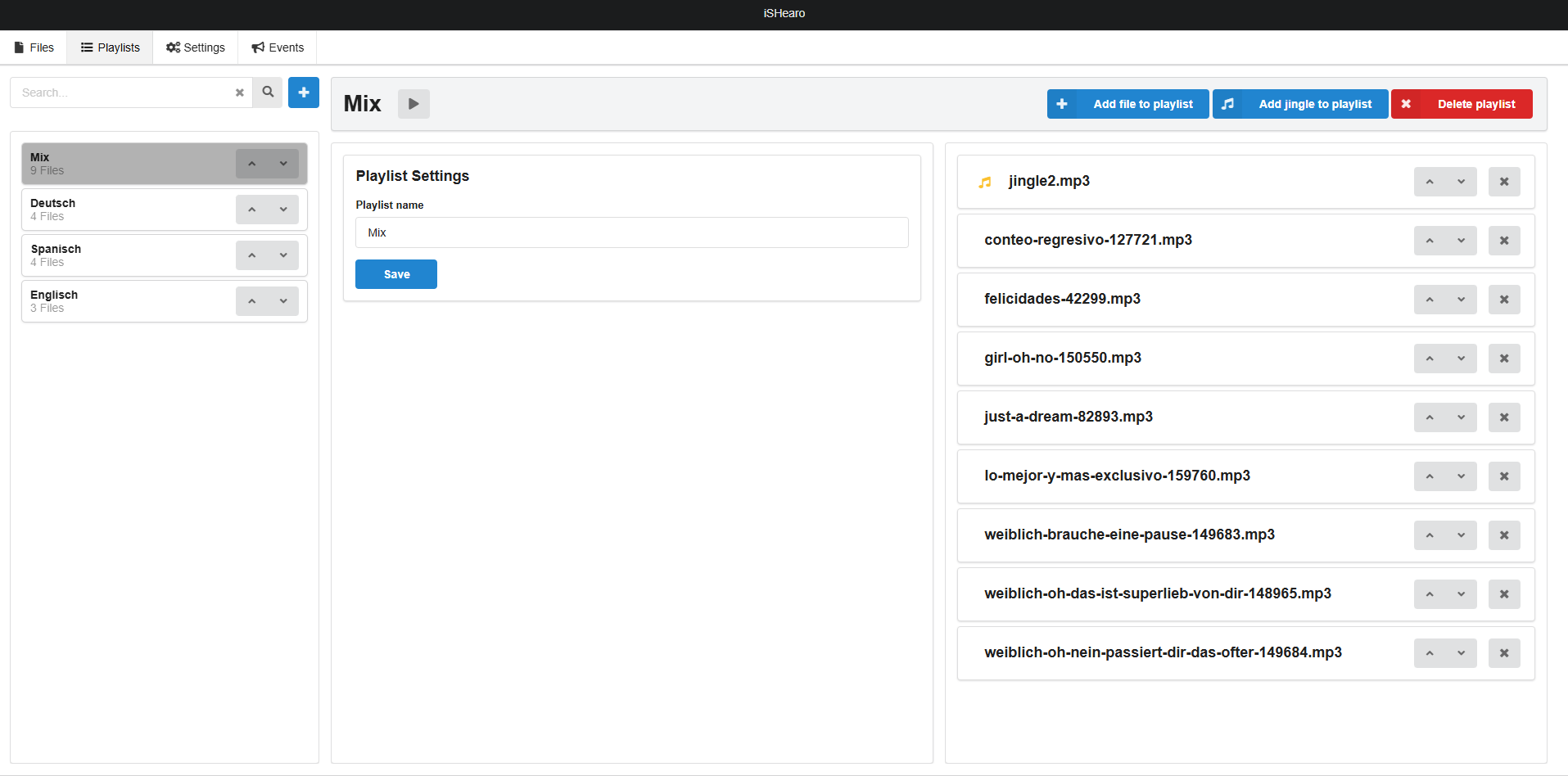
Here you can compile various playlists that can be triggered via the events.
Create new playlist
A new playlist is created in the main overview on the playlist tab using the + button to the right of the magnifying glass.

Name the playlist and create it with the Create button. The newly created playlist is empty at the beginning.
Playlist options

- If you click on the newly created playlist in the list on the left, you will see a bar with options above it.
- Audio files can now be added via Add file to playlist or Add jingle to playlist.
- Audio files uploaded via Jingle are labelled with a yellow logo to make it easier to distinguish them from the rest of the files.
- The Delete playlist button is used to delete the entire playlist and its content from the database.
- The Play button is used to play the entire playlist (taking into account the volume set for each audio file).
Move playlists
You can use the arrow buttons to the right of the playlists to change their order.
The order of the playlists is important, for example, if the next playlist is to be played later when an event is triggered.
Rename playlist
To rename the currently selected playlist, you will find an input field under the title Playlist Settings. The input is saved by using the Save button underneath.
Audio files within a playlist
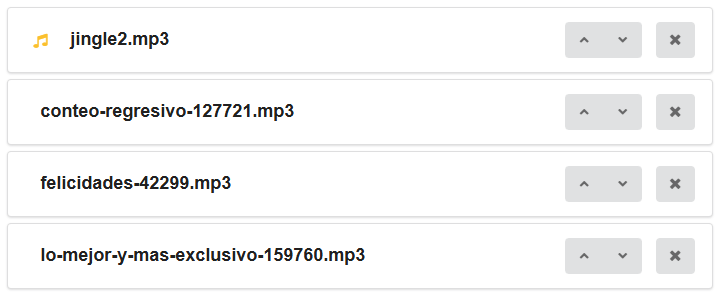
The order of audio files within the playlist can be changed as desired. To do this, simply use the arrow buttons to the right of the files, as when moving the playlists Use the X button to remove the audio files from the playlist. The files are renamed via the file tab and the Edit button of the respective file and are then updated in the playlist.