Tutorial Step 4: Changing a Value
To change a value, another building block is added to the template. This time, however, select "Slider" as the element type.
Since new building blocks always appear at the top left, the elements now overlap in the preview. You can see that the last added slider is above the first element (formatted text).
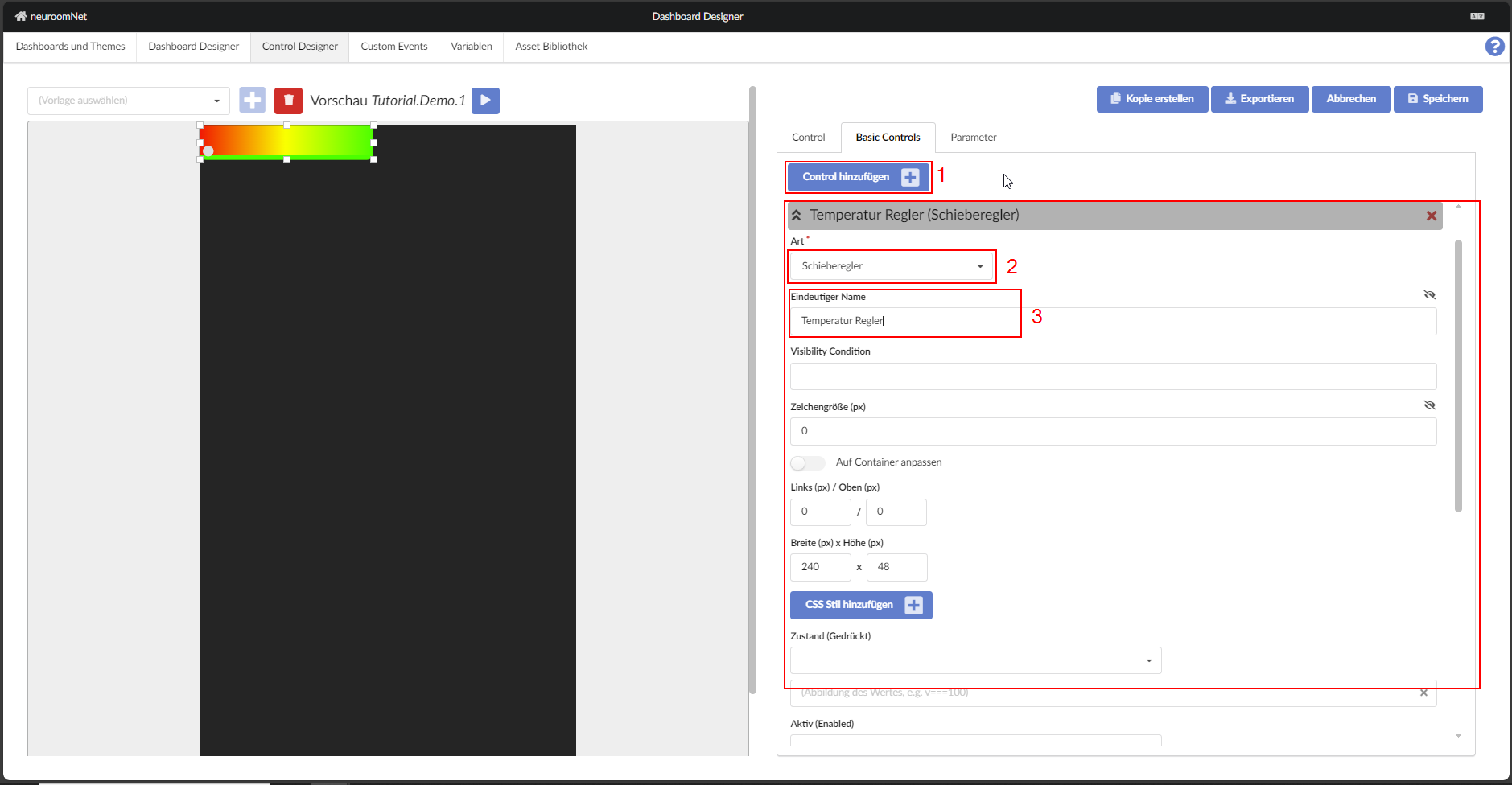
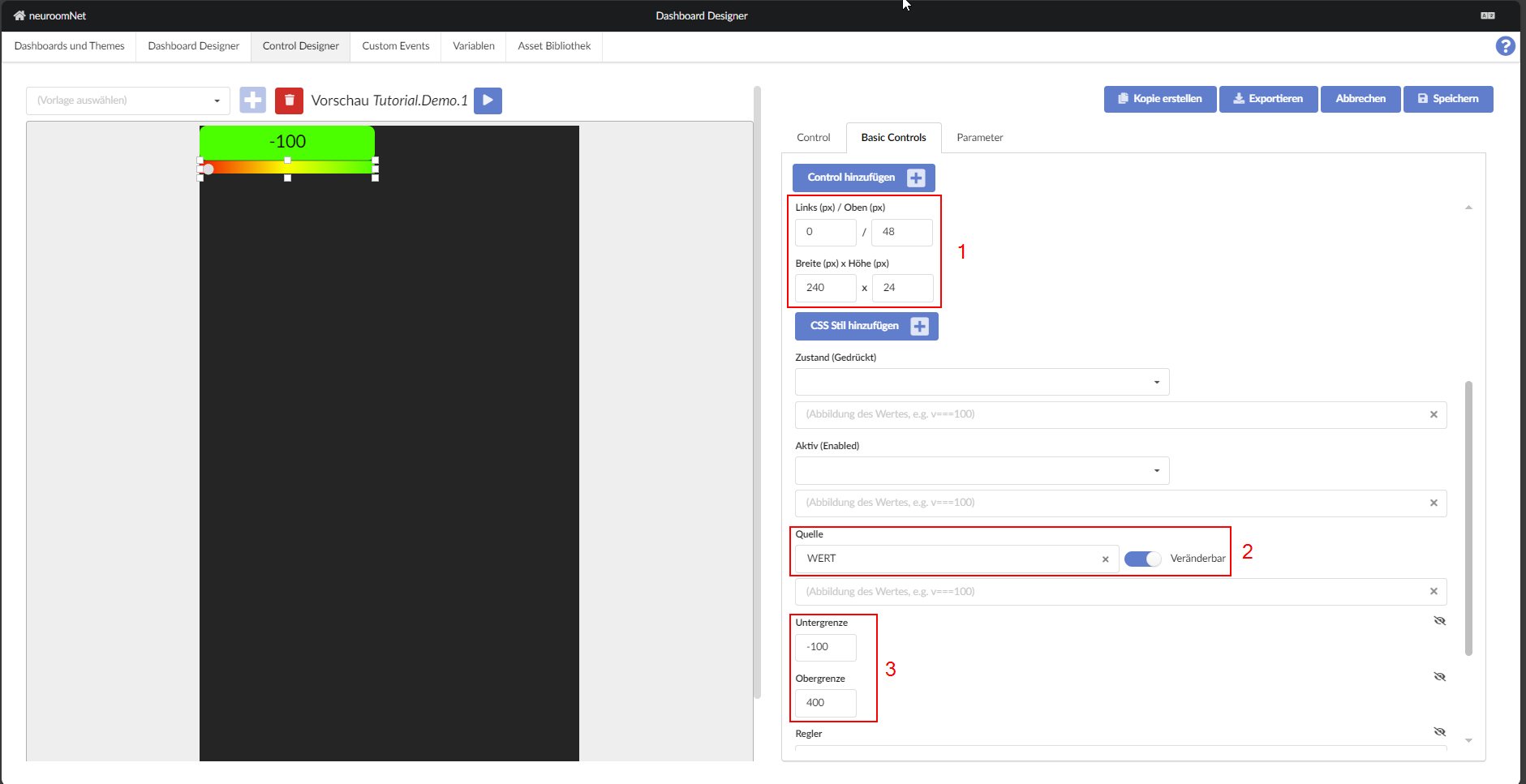
The slider now needs to know which parameter value should be displayed and edited. To do this, set the source. If the slider is to be used only for display, the "Editable" switch can be deactivated.
Of course, the slider also needs to know the limit values. In this example, a temperature between -10°C and 40°C should be displayed and set. The precision is 0.1°C, but since we only work with whole numbers here, the value range of the variable is -100 to 400. This type of scaling is not uncommon in practice.
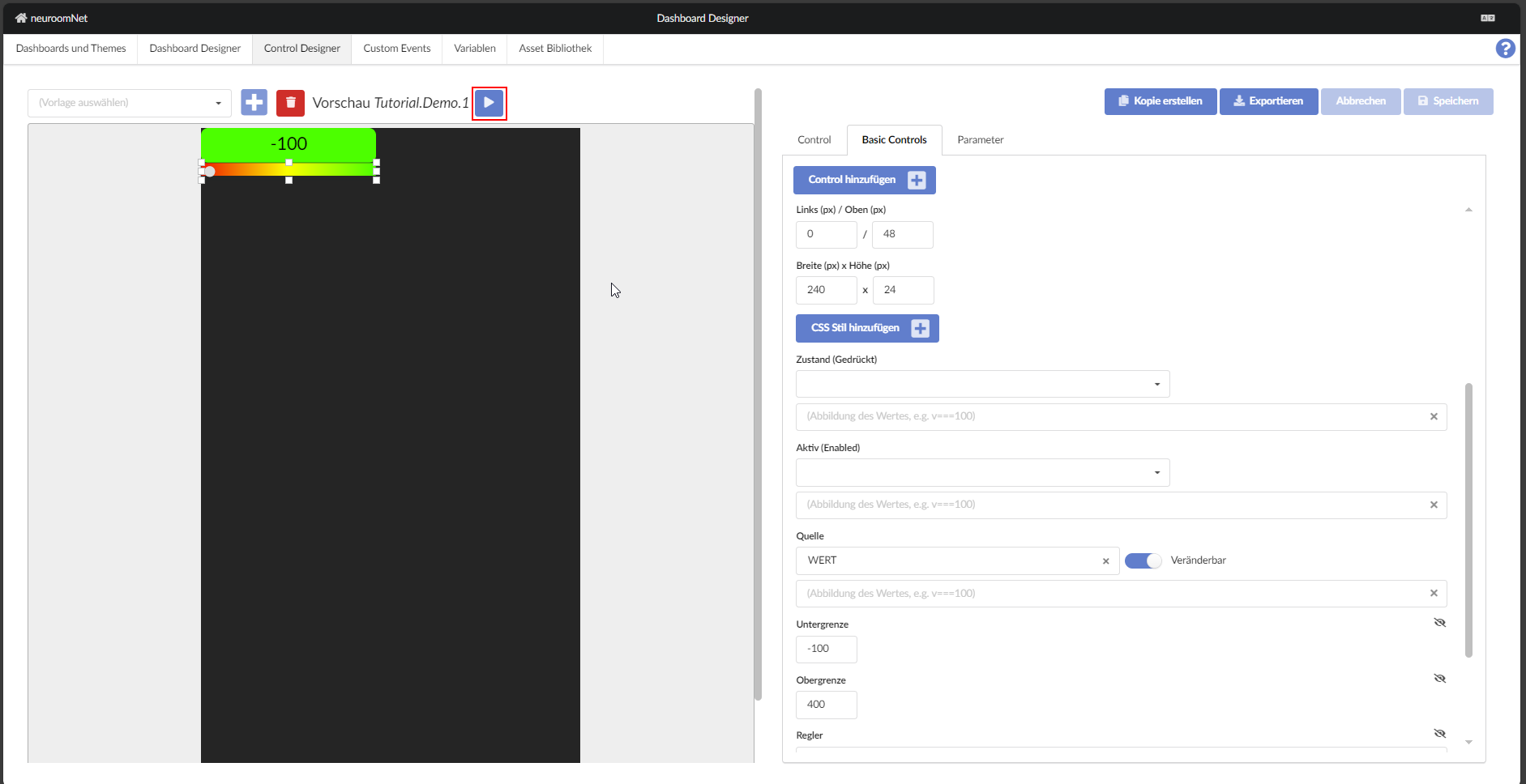
At this point it is advisable to start a first test run — for this, use the play symbol at the top right. The variable receives its first value and the building block with the formatted text can display it.

Next: Formatting Values