Tutorial Step 6: Building Blocks and Events
Create a Button
To simplify operation, the example should now also offer the ability to change the controlled value in larger steps. The slider has a precision of 0.1°C, so there should be controls that allow the setting to be increased or decreased directly by 1°C.
To do this, first add a new building block of the Button type — this time directly with a name. For this special application it can also be useful to set the state to red (false), as this will make it clearer what is supposed to happen here. The position (left) can also be set directly to approximately (240) so that this button appears to the right of the formatted value display.
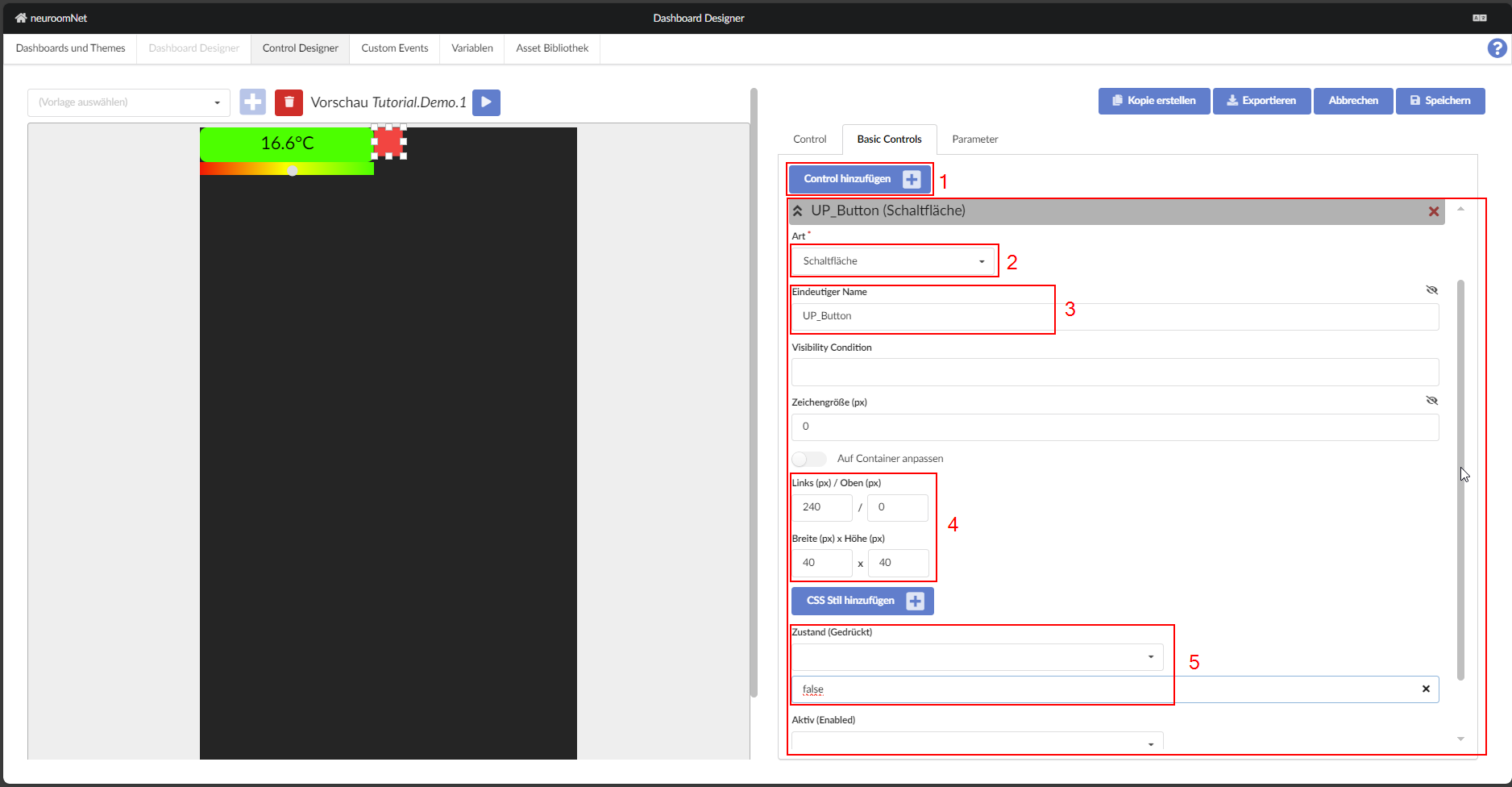
The button, like all other types of building blocks, offers individual interactive events — accessible via the plus symbol next to the text "Events".
Templates offer parameters that are connected to variables. Access from events to parameters is offered as private actions. For the example, the value of a parameter should be changed when clicking / touching the button — additionally there is also the option of directly entering a constant.
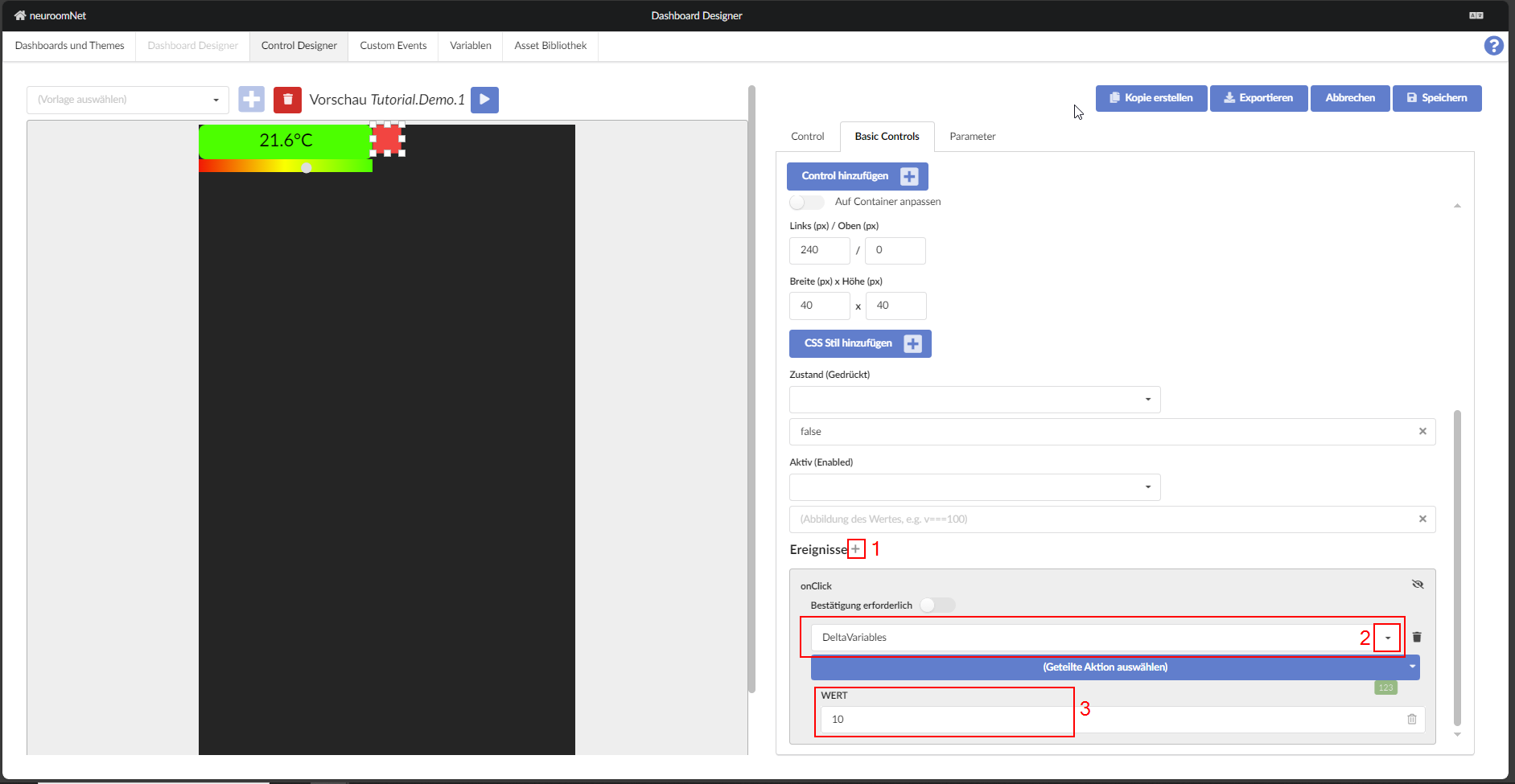
In the example, the only parameter is increased by 10 when clicking / touching the button — due to scaling this corresponds to exactly 1°C.
In the current configuration, no events would initially be defined in the context of the template. If the building block were to be used on a panel — by touch or mouse click —, an event would be triggered in the media control. In a script block, this can then be responded to and corresponding actions triggered. Within the framework of media control, a preliminary restriction can then take place for such events: which event was triggered by which building block on which panel of which control? For this reason, building blocks without their own name currently do not trigger events in media control: assignment would be difficult to impossible.
However, events can also be wired already within the template. In general, these are then no longer reported as events to media control. Here, a click or touch (onClick) should change the value of a variable.
After creating the event, an action can be assigned to it. First, the template setting is left deactivated as suggested — on a panel, this event cannot subsequently be changed and that is intentional, since it should be handled completely internally here.
It would now be possible to perform the variable change via a shared action. Shared actions contain all actions known in NeuroomNet, i.e. in addition to changing variables, actions for components and groups or freely definable actions of media control.
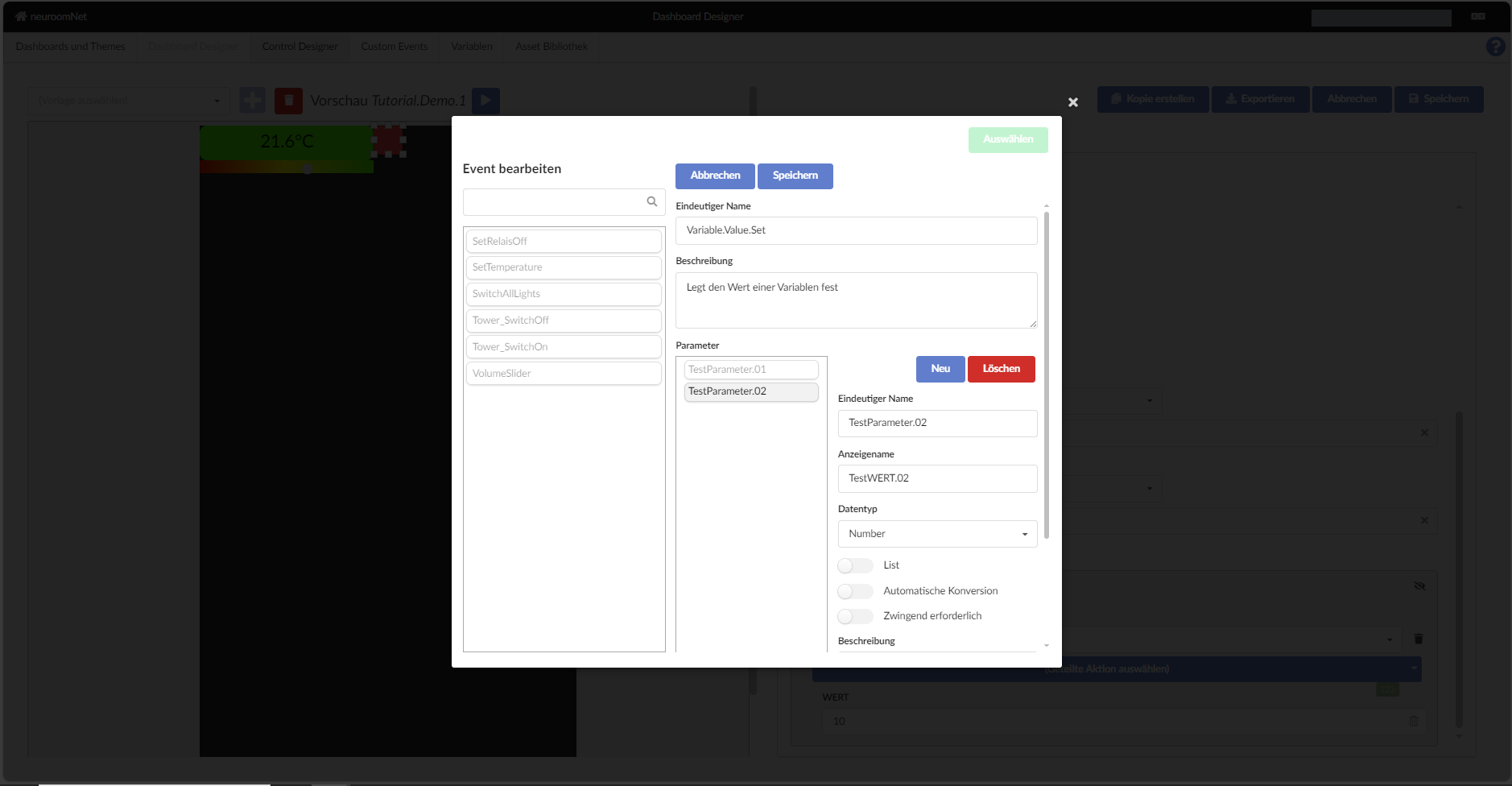
Especially (but not only) for accessing variables, this approach is somewhat cumbersome. Especially when other building blocks should access the same variable, it must be recorded multiple times. If the variable is basically not changeable within the template, this may still make sense. At the latest when a copy of the template is inserted into a panel and an adjustment needs to be made, it becomes somewhat tedious.
Create a Symbol
To visually indicate to the user what the just created button does, a symbol building block should be created and aligned with the button.
Now add a new building block of the Symbol type — also directly with a name (UP). The position of the symbol building block should be oriented to the position of the button. From the built-in symbols, you should of course choose an image appropriate to the purpose, which then also appears in the preview.
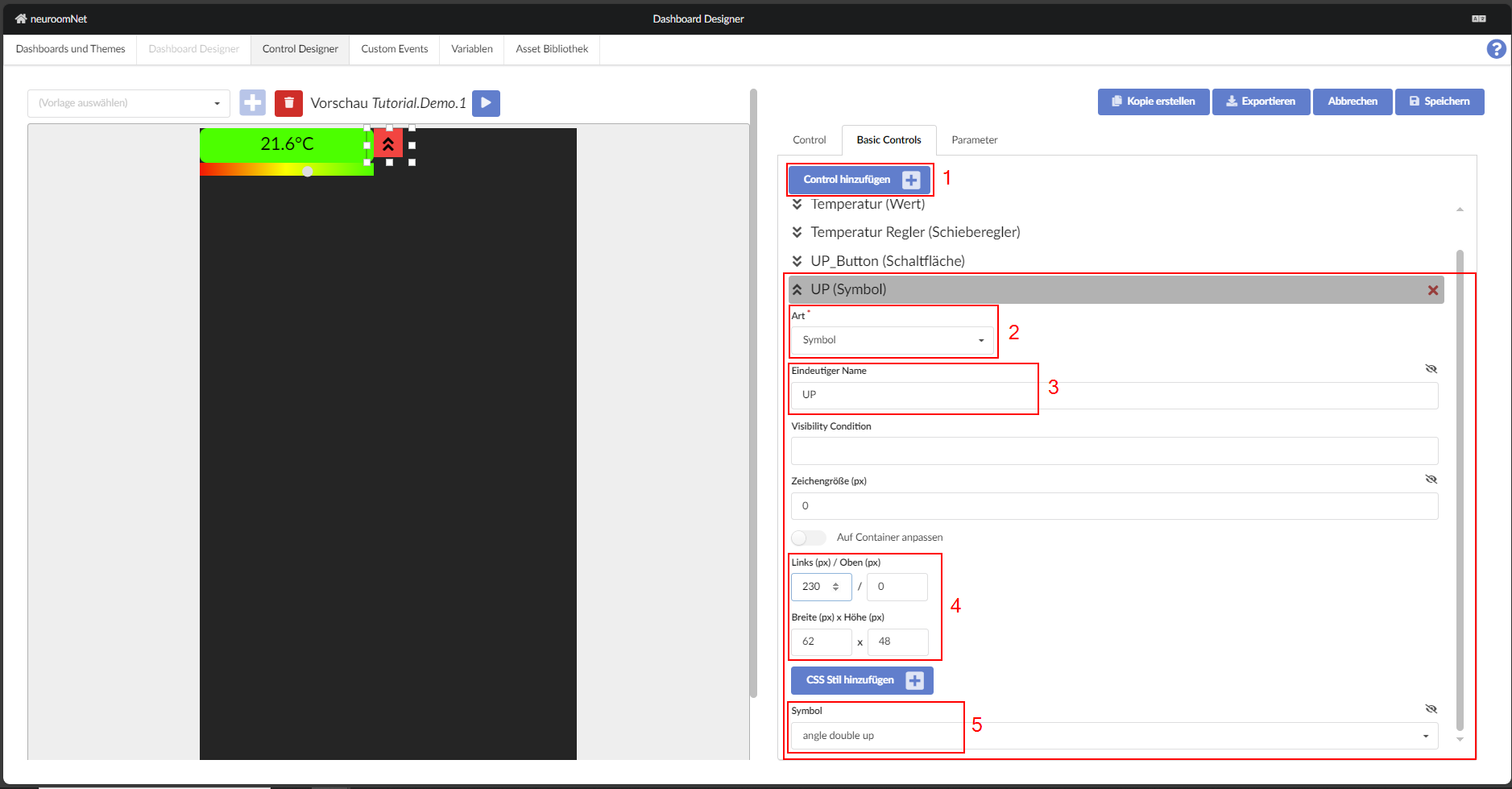
The above steps can now be repeated to create the second button. The following are some important differences in the configuration:
- The state of the button should be set to "true" so that the button has a green colour
- The value of "DeltaVariable" should be set to -10 so that the button lowers the temperature by 1°C
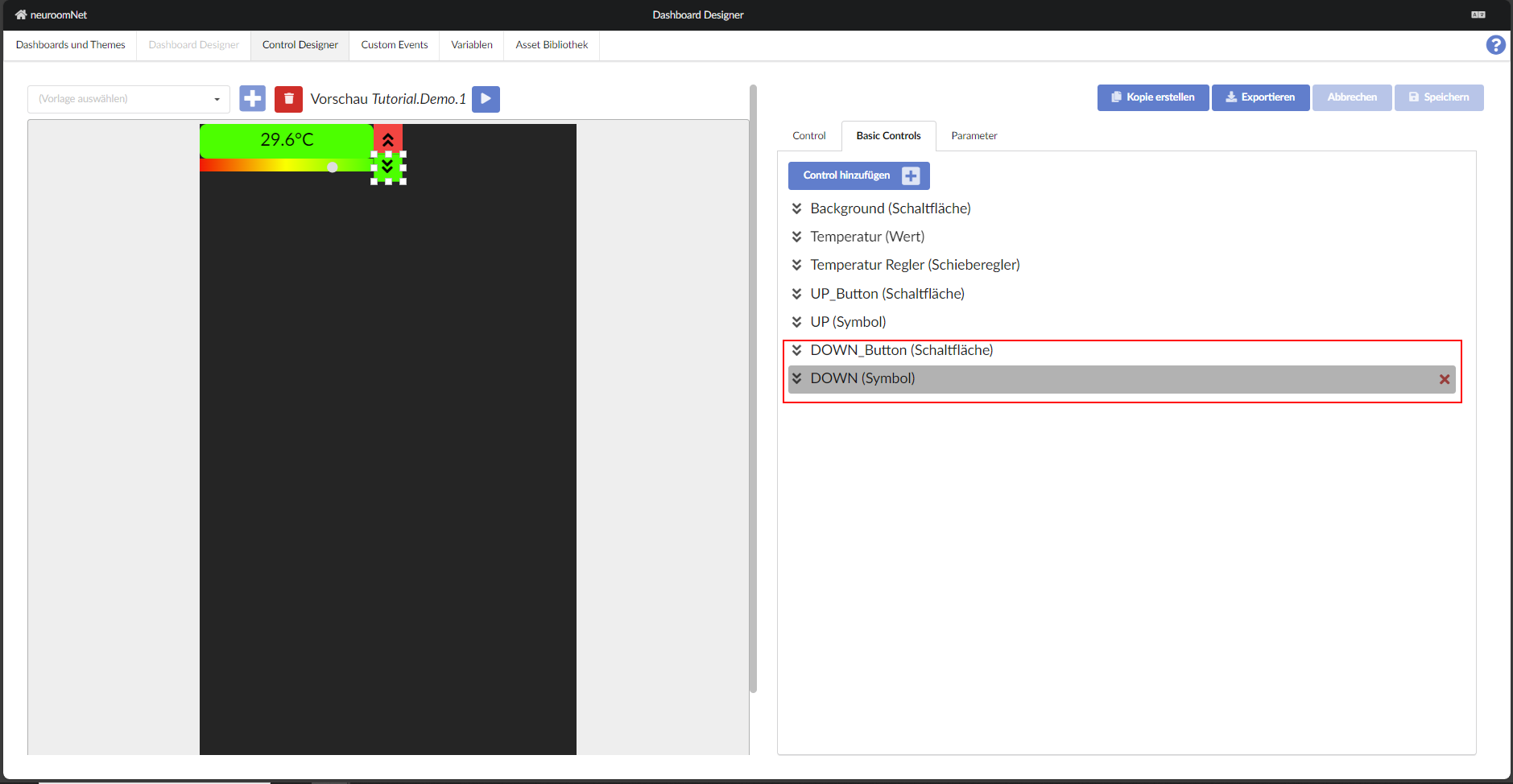
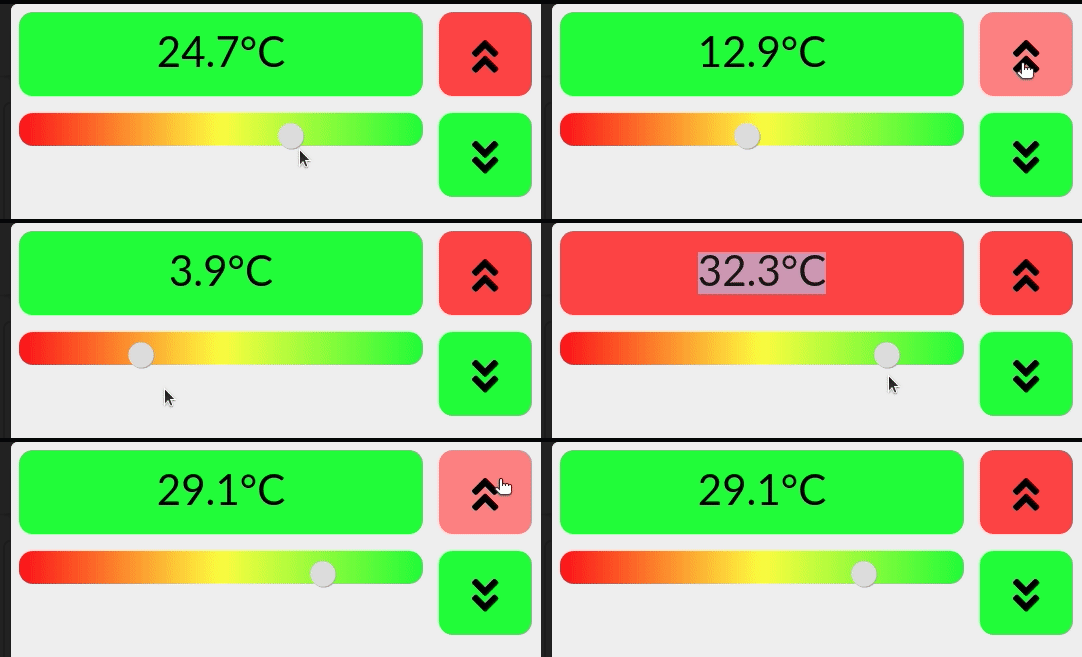
After adding the second button (and symbol), the control could then function as shown below (note: In this animation the buttons are positioned slightly differently):