List
The List element displays the entries of a variable configured with Value is a list. Use an Object list for entries with several fields, such as events containing a timestamp, message and state. Other variable types are also supported.
Each entry is rendered separately by an Item layout template. Selection belongs to the List element: selecting an entry writes its index and value, then triggers onSelect.
Properties
| Property | Behaviour |
|---|---|
| Items | The list variable whose entries are displayed. |
| Item layout | HTML/Handlebars source for one entry. With an empty template, Object entries use {{json this}}; other types use {{this}}. The editor placeholder shows the current default. |
| Selected index | Variable containing the selected position, starting at 0. It controls highlighting and is written when an entry is selected. |
| Selectable | Enables selection. The element must also permit interaction. |
| Selected item | Variable receiving the selected entry. |
| Scrollbar | Automatic shows a scrollbar when needed; Always keeps it visible. |
When selecting an entry, Selected index and Selected item are written before onSelect runs. Rendering a template or declaring a row class does not select an entry or write these variables.
Without a Selected index binding, the element keeps its selection locally. A bound index without a numeric value highlights no entry. In the layout editor, clicking selects the element for editing rather than a runtime list item.
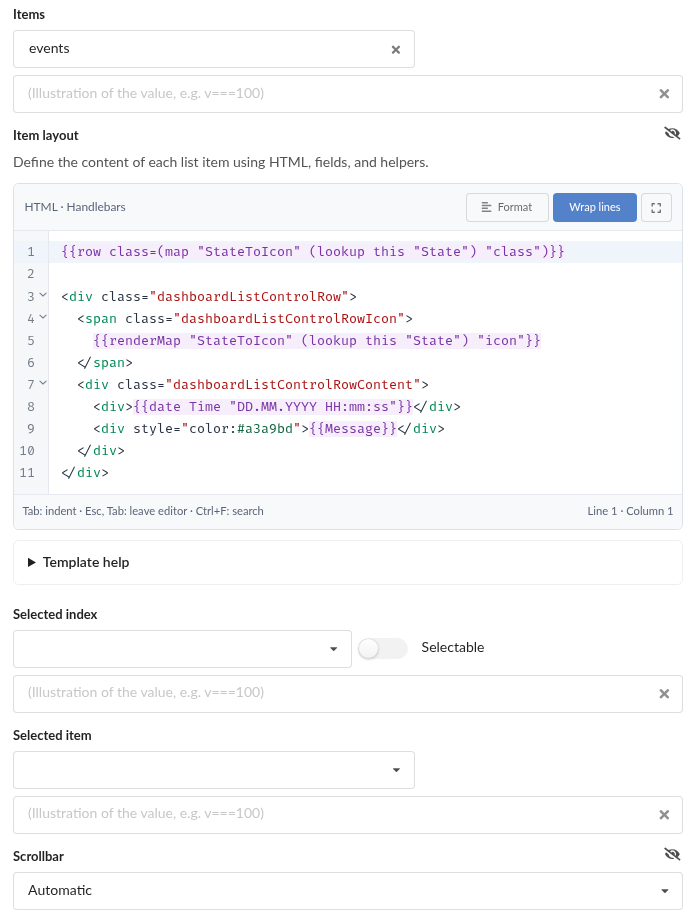
Current List properties. This existing Event Log configuration uses StateToIcon; the worked examples below use their own map names.
Documentation guide
Read the following pages according to what you want to configure:
- Item templates and helpers: field access, HTML escaping, conditions, formatting, symbols, assets, editor help and row classes.
- Value maps: reusable typed results, matching rules, editor workflows, testing, usage and asset handling. These concepts are independent of the List element.
- Worked list examples: complete event, range, typed-value, asset and fragment examples with expected results.
- Value-map technical reference: persisted schema, resolver/rendering APIs, validation, reference providers and extension boundaries.
The List element is currently the only element that consumes value maps. Maps can be shared by lists in the same layout. Other elements have no value-map properties or bindings yet.
Item template
The template is evaluated once per entry. this is that entry; for an object, {{this.Message}} inserts its Message field. Ordinary insertions are HTML-escaped. Authored HTML provides the layout, and helpers provide formatting and optional mapped content.
An empty template uses the default described in Properties. A missing field produces no visible text. Invalid templates are reported in the editor; a failed outer template renders an empty entry. See diagnostics for the different behaviour of an isolated map fragment.
Value maps
A value map selects the first matching rule and exposes its named, typed outputs. It does not decide where content appears or how an element behaves. In an item template, map reads a raw output and renderMap explicitly renders a template output:
This snippet assumes the definitions in the event example. Keys such as label, content or class are user-defined names with no automatic behaviour. Use the general map guide to configure definitions, rules and the optional fallback.
Row layout
Use template markup for alignment and row for classes on the outer list entry. Both work without maps. The recipe classes dashboardListControlRow, dashboardListControlRowIcon and dashboardListControlRowContent align an icon slot beside text. Add right to the row container to move the icon slot to the right.
See row metadata for allowed class names and the event example for a complete mapped layout. A class such as listItem-error changes appearance through CSS; it does not select the entry.
CSS classes
- dashboardListControl: an HTML element (DIV) with this CSS class is created for the elementary module itself.
- dashboardListControlScrollbar: this CSS class is added when Scrollbar is set to Always.
- controlEnabled: this CSS class is added when the parameter Status returns true - referred to as enabled below.
- controlDisabled: likewise when the parameter Status returns false - disabled for short. If Status returns neither true nor false (because Status is not bound to a parameter, for example), the module is neither enabled nor disabled.
- controlActiveTrue: as with the parameter Status, but compares the parameter Active with true - referred to as active.
- controlActiveFalse: inactive for a value false of the parameter Active.
- controlForbidden: the logged-in user is not allowed to operate the module.
- dashboardListControlItem: an HTML element (DIV) per entry. The selected entry additionally gets the CSS class selected. Valid row declarations add listItem classes, for example
listItem-error. - dashboardListControlIcon: an icon inserted with
icon(HTML element I). - dashboardListControlPoolIcon: an icon inserted with
poolIcon(HTML element IMG). - dashboardListControlAsset: an image inserted with
asset(HTML element IMG). - dashboardListControlRow: in an aligned template recipe, an HTML element (DIV) in the entry that arranges icon and content side by side. With the recipe class right it also has the CSS class right.
- dashboardListControlRowIcon: the HTML element (SPAN) holding the icon.
- dashboardListControlRowContent: the HTML element (DIV) holding the content of the item template.
An entry can only be selected if the module is not disabled and Selectable is switched on.
CSS variables
The variables --list-… are set on the module itself (Add Style (CSS)), the variables --dashboard-list-control-… in a theme or for a whole dashboard, page or panel. If the variable on the module is not set, the variable from the theme applies, otherwise the default.
- --list-background / --dashboard-list-control-background, default #ffffff: the background (CSS background) of the list. If neither variable is set but --control-text-background is, that value is used instead of the default.
- --list-border / --dashboard-list-control-border, default 1px solid #a0a0a0: the border (CSS border) of the list.
- --list-border-radius / --dashboard-list-control-border-radius, default 0: the corner radius (CSS border-radius) of the list.
- --list-padding / --dashboard-list-control-padding, default 0.25em: the padding (CSS padding) of the list. If neither variable is set but --control-padding or --dashboard-control-padding is, that value is used instead of the default.
- --list-item-gap / --dashboard-list-control-item-gap, default 0.25em: the gap between the entries.
- --list-item-background / --dashboard-list-control-item-background, default #ffffff: the background of an entry.
- --list-item-foreground / --dashboard-list-control-item-foreground, default #000000: the text colour (CSS color) of an entry. If neither variable is set but --control-text-foreground or --dashboard-control-text-foreground is, that value is used instead of the default.
- --list-item-border / --dashboard-list-control-item-border, default 1px solid #d4d4d5: the border of an entry.
- --list-item-border-radius / --dashboard-list-control-item-border-radius, default 0.25em: the corner radius of an entry.
- --list-item-padding / --dashboard-list-control-item-padding, default 0.5em: the padding of an entry.
- --list-selection-background / --dashboard-list-control-selection-background, default #cccccc: the background of the selected entry.
- --list-selection-foreground / --dashboard-list-control-selection-foreground, default is the text colour of an entry: the text colour of the selected entry.
- --list-scrollbar-track / --dashboard-list-control-scrollbar-track, default rgba(0, 0, 0, 0.1): the background of the scrollbar when Scrollbar is set to Always.
- --list-icon-size, default 1.2em (one line of text): the height of the icons and images from the item template and the value map.
- --list-icon-gap, default 0.5em: the gap between the aligned recipe icon slot and content.
Special notes
The text size is set with the parameter Character size (px) - if it is 0, the default of the template or the control is used. Without --list-icon-size, icons and images from the item template grow with the text size.
An asset that is only used through {{asset …}} does not count as "in use" in the asset library and can be deleted, because the reference is only resolved when the list is shown. The entry then shows no image. Assets in declared Asset reference outputs are protected; Text values and template source alone do not count.
Helper names take precedence over fields of the same name. A field named icon or asset is therefore inserted with {{this.icon}} or {{this.asset}}.