Tab Asset Library
In the Asset Library tab, (graphical) assets (images) that can then be used in dashboards, controls, and control templates can be managed. In general, in order to use a graphic / asset in dashboards, it must be uploaded to the NeuroomNet server via the Asset Library.
User Interface Overview
The graphical interface offers the following functions:
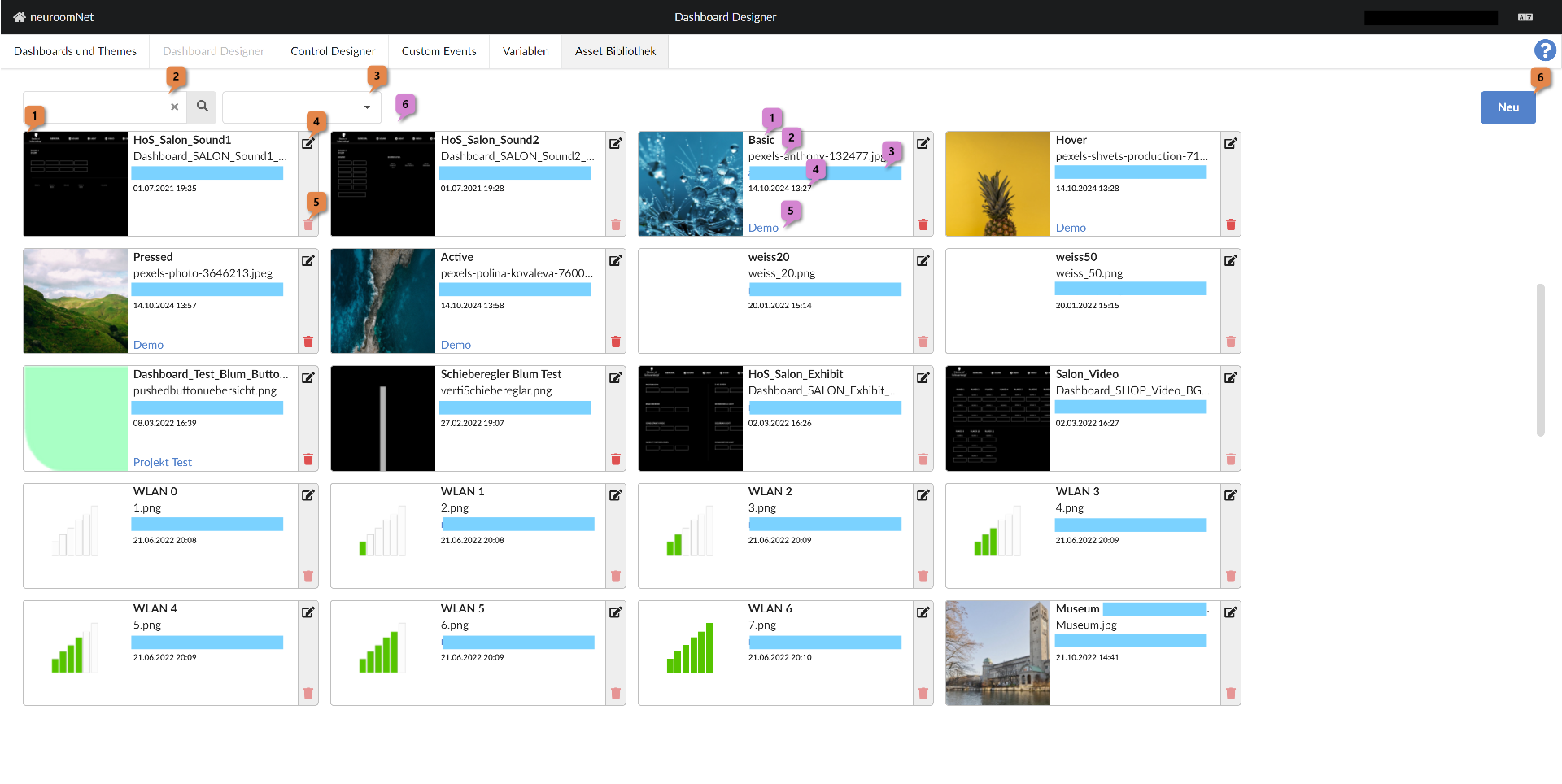
Under 1 the uploaded assets are each displayed as tiles. An asset tile shows the following information:
- Name of the asset 1
- Filename of the asset 2
- Username of the creator / uploader of the asset 3 (in the screenshot above, the usernames have been replaced by a blue area)
- Time of the last modification to the asset 4
- Optional: A keyword assigned to the asset 5
The displayed assets / tiles can be influenced via a text filter 2 and a keyword filter 3.
Editing of assets is possible via the following controls in the interface:
- Using the pencil 4 an asset can be edited, see the following section Edit asset
- Using the trash bin 5 an asset can be deleted
- Using the "New" button 6 a new asset can be added
Edit Asset
After clicking the pencil to edit an asset 4 (or when creating a new asset via 6), a popup opens showing the properties of the respective asset:
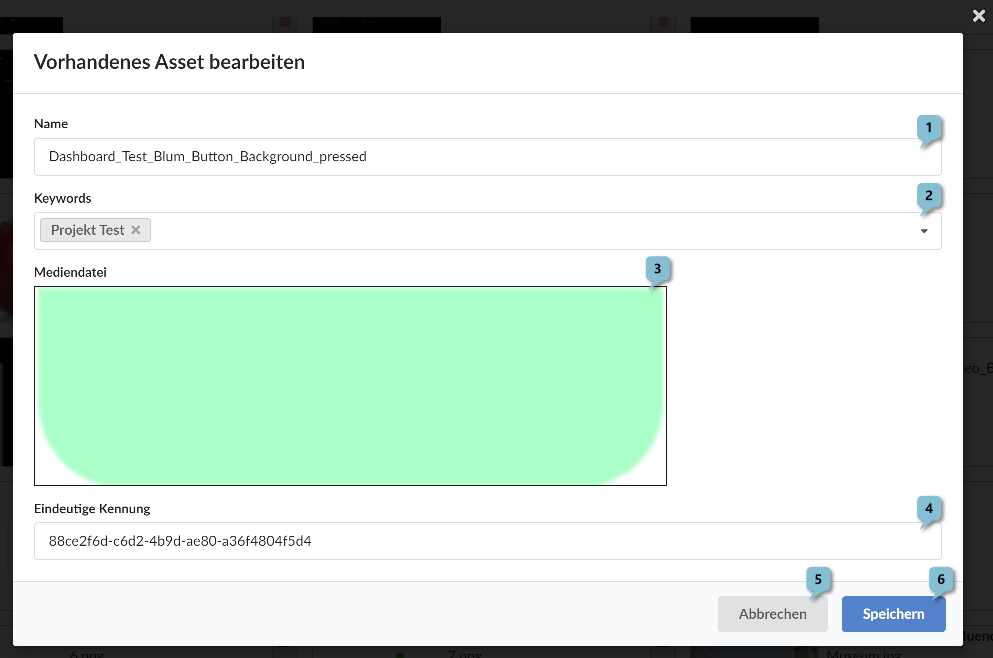
- Name: Freely selectable name of the asset 1
- Keywords: Keywords of the asset (optional) 2
- Media file: Display of the asset in possibly enlarged view (clicking opens a file browser and a different media file can be selected) 3
- Unique identifier: Technical ID of the asset. This is not editable and normally not required 1
Using the "Cancel" 5 and "Save" 6 buttons, changes made can be cancelled or saved.
Create / Upload New Asset
After clicking the "New" button 6, a popup opens, similar to the one in the previous screenshot, in which a new asset can be uploaded including specifying a name and keywords.