Tab Control Designer
In the Dashboard Control Designer tab, control templates can be created, edited, and deleted. These control templates consist of at least one basic control and can be used in dashboards. As the name "Template" suggests, copies of the control templates are used in dashboards, not the template itself1.
GUI Overview
The user interface of the "Control Designer" tab is divided into 2 vertical sections:
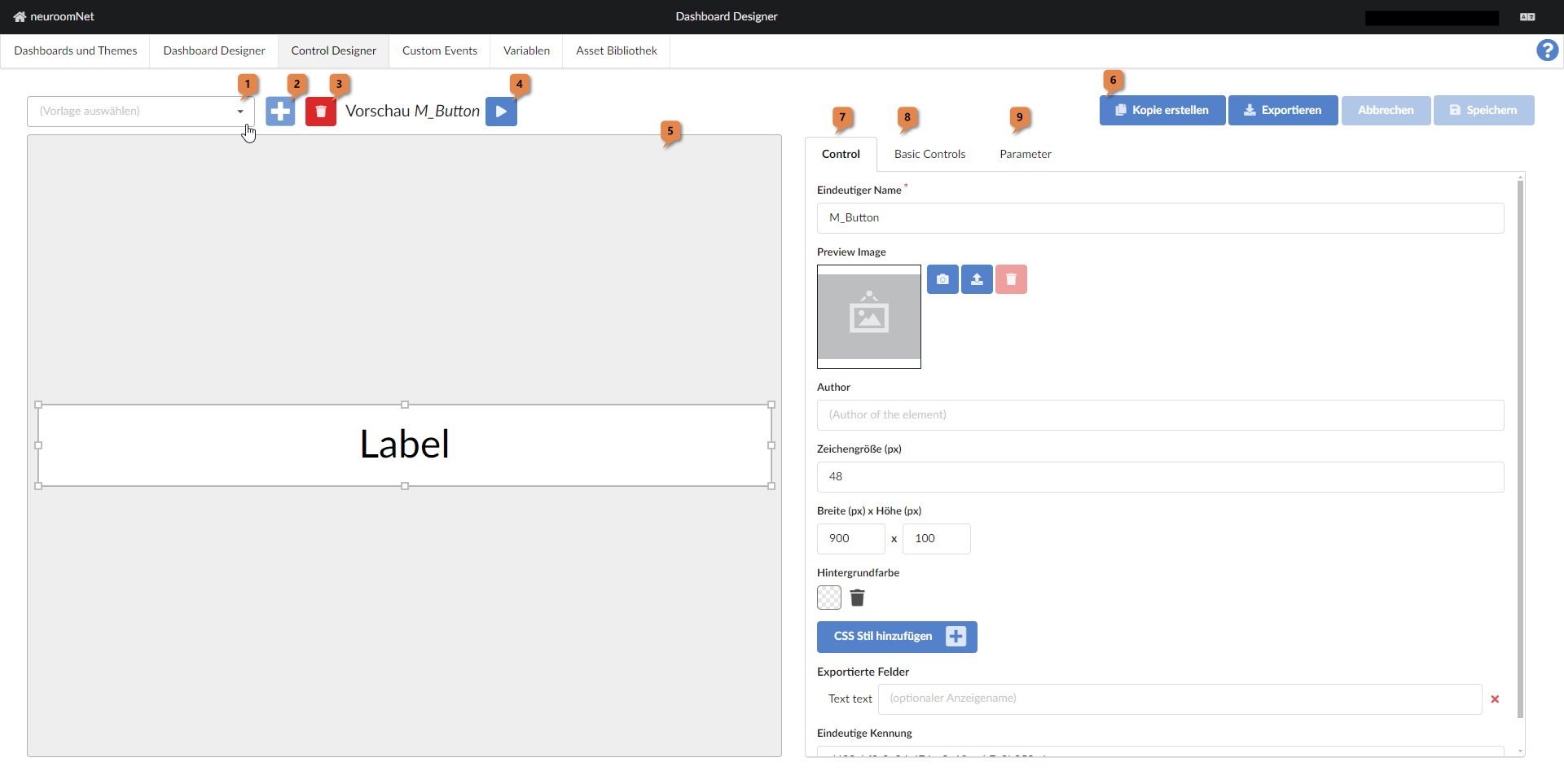
Left Part
In the left part, which is responsible for managing and in particular selecting the control templates:
- An existing control template can be selected using the combobox 1
- A new control template can be created using the plus button 2
- The currently selected control template can be deleted using the trash bin 3
- The currently selected control template can be displayed in play mode using the play button 4
- In the area 5 the currently selected control template is displayed, usually in a zoomed state (unlike the display via the play button, see above)
Right Part
In the right part, attributes of the currently selected control template are displayed and it can be edited:
If an already existing control template is currently selected, the following buttons are displayed in the button bar 6 (as shown in the screenshot above):
- Button "Create copy": A copy of the currently selected control template is created
- Button "Export": The currently selected control template is exported as a JSON file (such an export can be imported again for a newly created control template, see below)
- Buttons "Cancel" and "Save": Changes made to the control template since the last "Save" are undone or saved.
If a newly created control template is currently selected, the following buttons are displayed in the button bar 6:
- Button "Import": A previously exported JSON file of a control template can be imported here
- Button "Online": A control template stored in the cloud can be selected and imported
- Buttons "Cancel" and "Save": As described above, cancel or save the changes since the last "Save".
The tabs 7, 8, and 9 are (nearly) the same tabs for controls as in the "Dashboard Designer" tab:
- In the "Control" tab 7 central settings can be made on the template control, in particular defining:
- a name,
- preview images (optional),
- author (optional),
- font size (not relevant for every basic control, but present by default),
- width and height, and
- background colour
- In the "Basic Controls" tab 8 basic controls can be added to the template control (at least one is required)
- In the "Parameters" tab 9 bindings to variables can be defined. Via these bindings, basic controls can access variable values (read and write)
For further explanations of tabs 7, 8, 9 and generally about control templates, see the advanced tutorials in Dashboard Tutorials.