Quick start
Access to the CMS is exclusively encrypted (HTTPS) and always requires authentication. This quick start uses Basic authentication. For this, an administrator has created a user account in advance but has not yet set a password.
Creating a user account
There is no dedicated interface for account management: user accounts are records of the predefined API cms/users. In general, only the administrator has access to this API. A new account CMS_User_01 with rights on the namespace tutorial could be created like this:
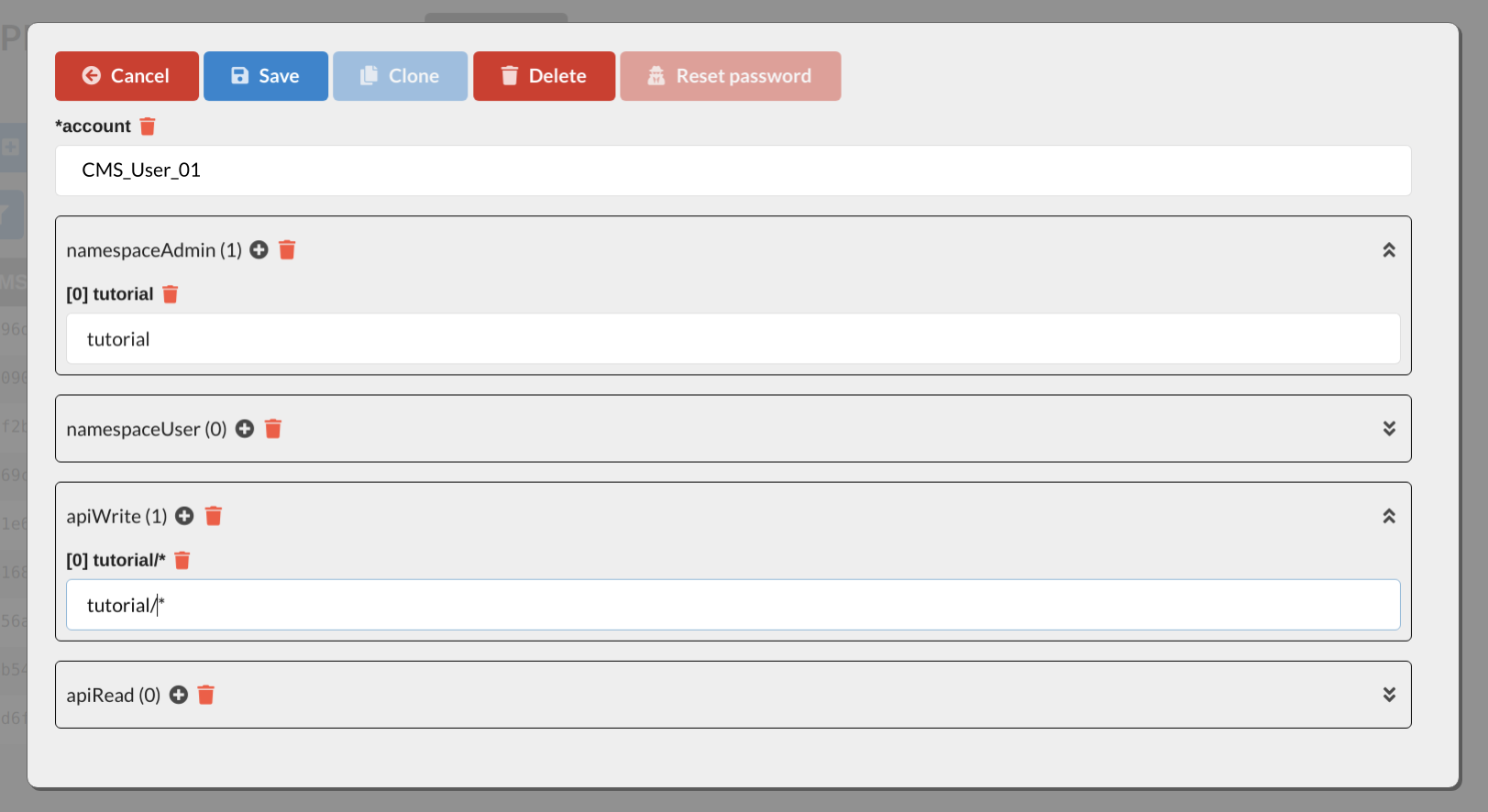
The account may create, change, and delete any APIs in the namespace tutorial (namespaceAdmin). This includes a read right on the APIs, so namespaceUser can remain empty. In addition, the account receives full access to all records of all APIs in this namespace (apiWrite is tutorial/*). Here, too, the read right is included, so apiRead can remain empty. Details: Rights and accounts.
Via the data interface, the creation looks like this (as administrator):
curl -X POST -u 'admin:<password>' -H 'Content-Type: application/json' \
  -d '{ "account": "CMS_User_01", "namespaceAdmin": ["tutorial"], "apiWrite": ["tutorial/*"] }' \
  https://cms.example.org/data/cms/users
At the first sign-in, the account sets its password itself: the password used for this sign-in is stored. An administrator can later reset or set the password (see Passwords).
Empty editing application
After signing in to the editing application /form, nothing is visible at first because no API has been defined yet.

Creating the first API
An HTTP POST to /schema/tutorial/stringonly creates the API stringonly in the namespace tutorial. The object class contains only one field name of type string ("type": "string") with 4 ("min": 4) to 40 ("max": 40) characters. The editing application receives the hint that the field should appear in the table view ("column": true). The complete description of the format can be found under API configuration.
{
    "application": "Tutorial",
    "label": "Hello World",
    "project": "inSynergie CMS",
    "tags": [],
    "fields": {
        "name": {
            "cms": {
                "column": true
            },
            "type": "string",
            "min": 4,
            "max": 40
        }
    }
}
With curl, if the JSON is in stringonly.json:
curl -X POST -u 'CMS_User_01:<password>' -H 'Content-Type: application/json' \
  -d @stringonly.json https://cms.example.org/schema/tutorial/stringonly
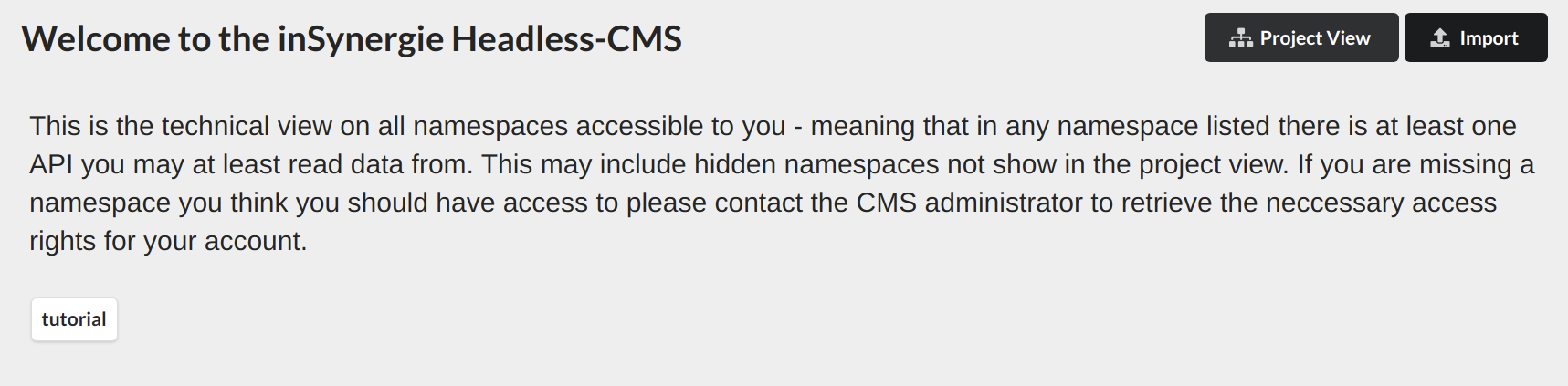
After a refresh, the API appears in the editing application. In the default project view, it is listed as Hello World in the application Tutorial of the project inSynergie CMS. The Namespace View button at the top right switches to the technical view of the namespaces:
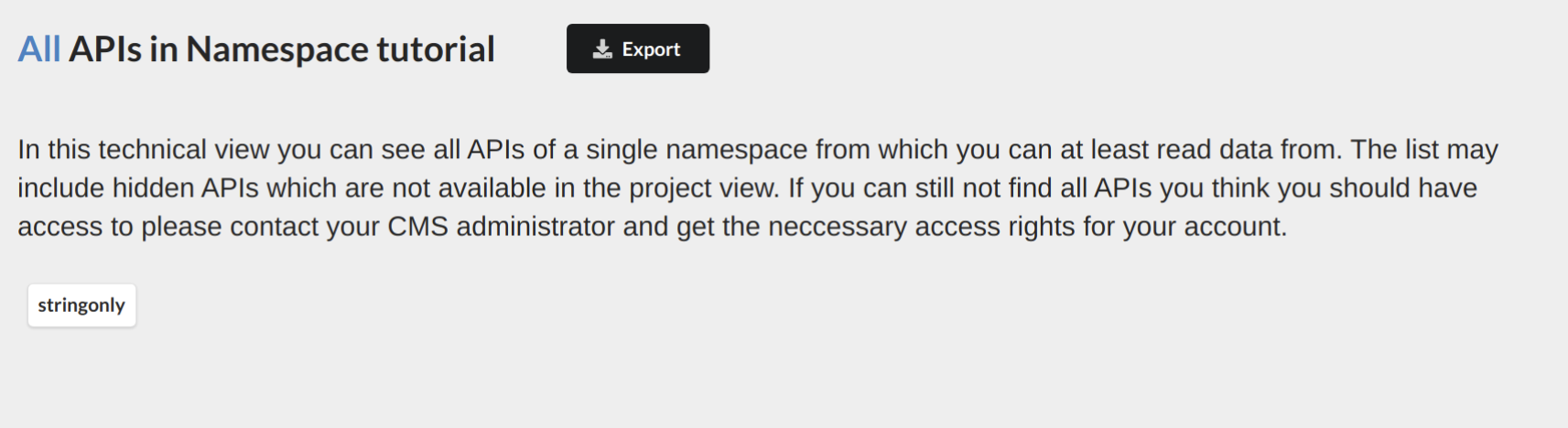
Clicking on the namespace tutorial shows the only API in it so far:
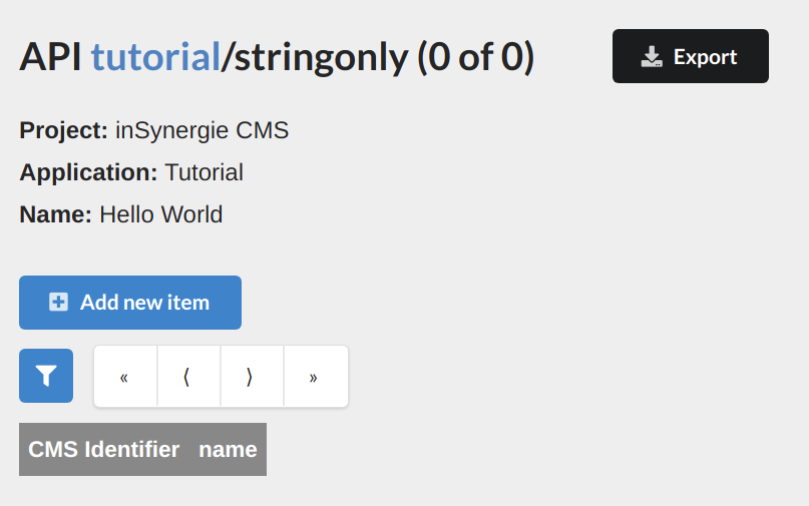
Clicking on the API stringonly opens the list of its records, which is of course still empty. The project view leads to the API more directly. As a developer, however, you should first become familiar with the physical structures.
First record
Now the first record can be created in the interface. During input, a yellow warning symbol indicates invalid entries:

Afterwards, the record appears in the list. Paging and filtering are possible but are not explained further here.
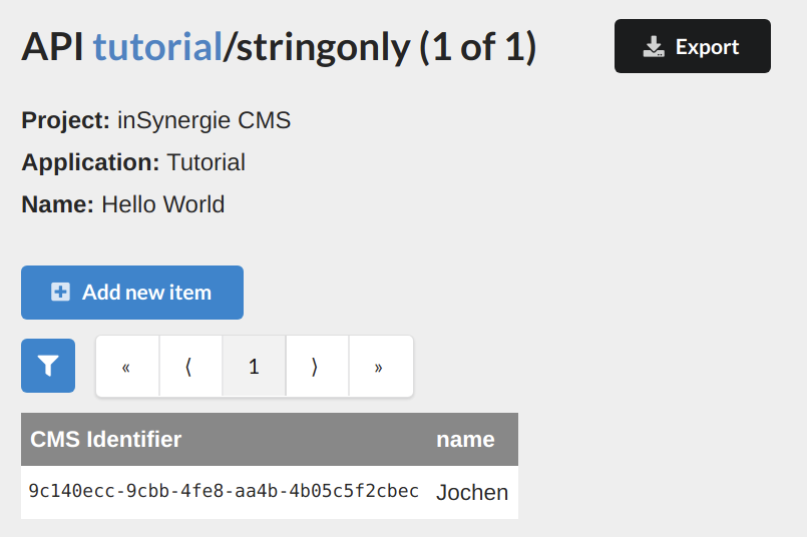
All CRUD operations are also possible via the data interface. A POST to /data/tutorial/stringonly creates a new record:
{
    "name": "Nicolas"
}
curl -X POST -u 'CMS_User_01:<password>' -H 'Content-Type: application/json' \
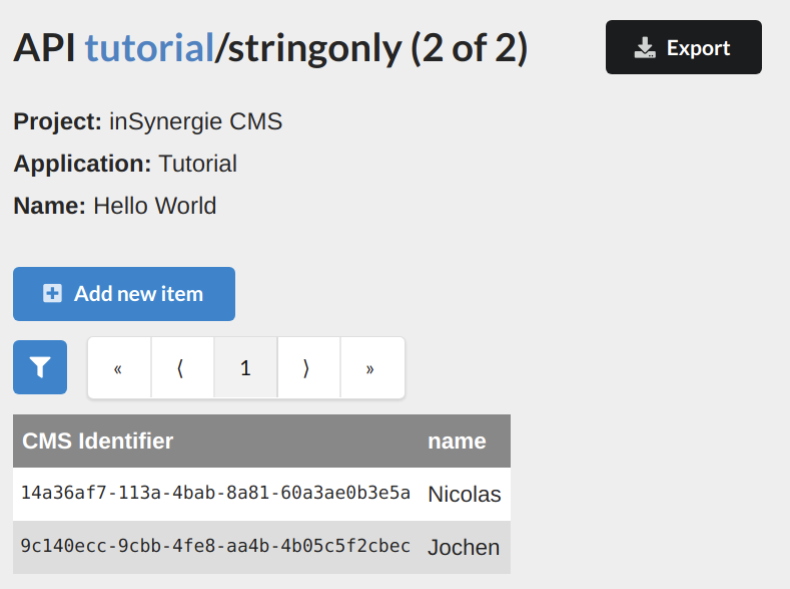
  -d '{ "name": "Nicolas" }' https://cms.example.org/data/tutorial/stringonly
After refreshing the editing application, this record also appears in the list:
The same with fetch
From JavaScript, for example in an application in the browser or in Node.js:
const cms = 'https://cms.example.org'
const auth = 'Basic ' + btoa('CMS_User_01:<password>')

// Create record
const created = await fetch(`${cms}/data/tutorial/stringonly`, {
    method: 'POST',
    headers: { Authorization: auth, 'Content-Type': 'application/json' },
    body: JSON.stringify({ name: 'Nicolas' }),
}).then((res) => res.json())

// Read all records (first page, see Queries)
const { items } = await fetch(`${cms}/data/tutorial/stringonly`, {
    headers: { Authorization: auth },
}).then((res) => res.json())
The CMS allows access from any origin (CORS). Passwords, however, do not belong in code delivered to the browser. For applications in the browser, short-lived tokens or OIDC are better suited.